
Verify and Bulk Add Fleet Devices
Devices purchased through Vivacity are automatically added and verified in Dream™. For devices purchased elsewhere, use the bulk import process below.
Steps
-
Click Assets
-
Click Bulk Actions
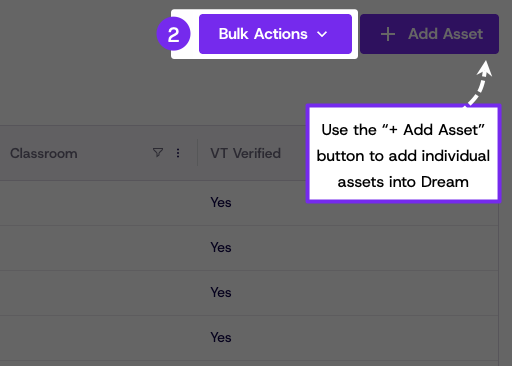
-
Click Import Assets, to be taken to the bulk import page
-
Click Add New Import
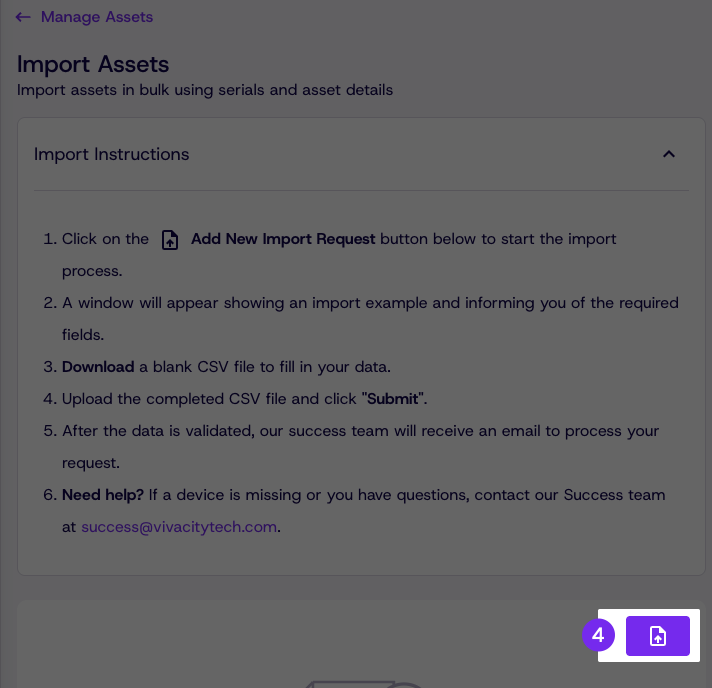
-
Click Download Blank CSV Template
-
Populate the CSV template with your device information
-
Click Upload CSV File, then click Submit
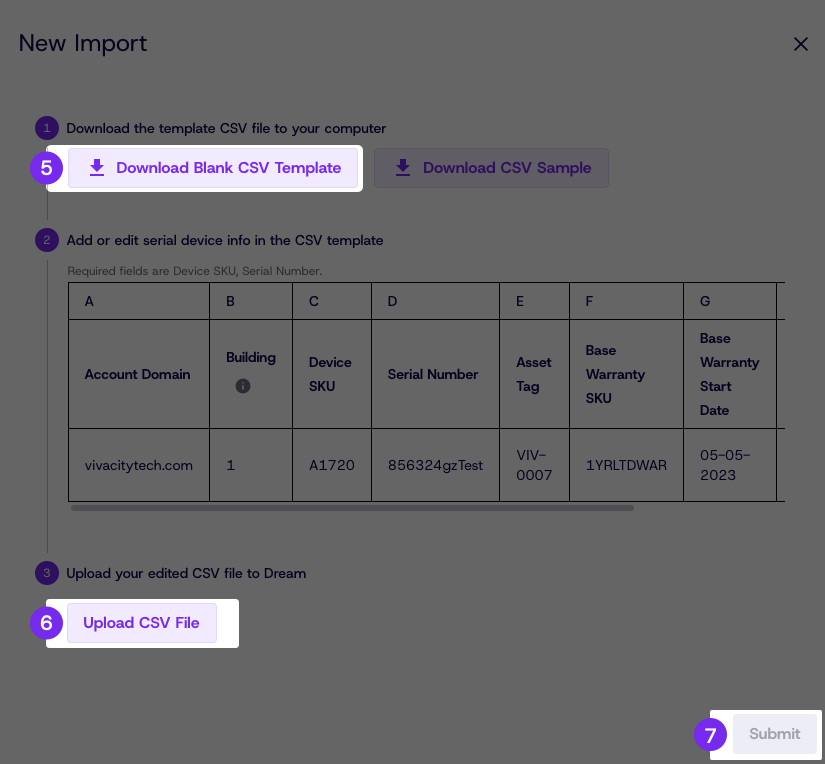
Tips for Populating the CSV
Populate the CSV as completely as possible. The goal is to match each device serial number to its Manufacturer Part Number (MPN) or SKU. Warranty information is optional — leave it blank if unknown.
Vivacity uses MPN data for parts forecasting and buyback purposes to enhance your repair experience.
If you have urgent repair needs, submit two separate files — one for your immediate needs and one for the remainder of your fleet.
Updated 8 days ago