
How to custimize or filter tables in Dream
Make Dream your own, or adapt it to your workflow. Searching, Filtering, and Table Customization is possible over all Dream tables
Global Search
Use the search bar at the top of Dream™ to quickly search across Assets, Users, and Tickets from anywhere in the application.
Filtering Tables
-
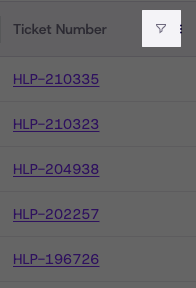
Click the filter menu icon in the column header you want to filter
-
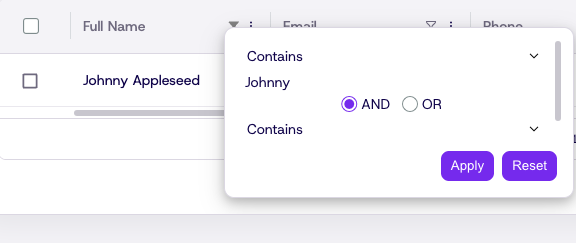
Select a condition from the dropdown
-
Enter your filter text and click Apply
-
To remove a filter, click Reset Filters
Customizing Table Columns
All tables in Dream™ can be customized per user.
-
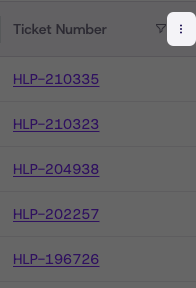
Click the kebab menu icon on any table
-
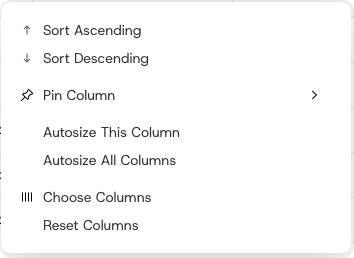
Add, remove, pin, or reorganize columns as needed
-
Click Save Table View to save your customization

-
Click Reset Table View to revert to the last saved view or the default view

Updated 28 days ago
Did this page help you?