
How to add fees to People in Dream
Add fees, send out reminders, and manage your team all within Dream
Throughout the ticketing or management process, it may be necessary to assign fees based on things like lost devices, internal repairs, or damages. Dream makes the process of adding and monitoring fees easy.
How to add a fee to a Person
Any person in Dream can be assigned a fee by a User with the Fee Modify permission
Steps
-
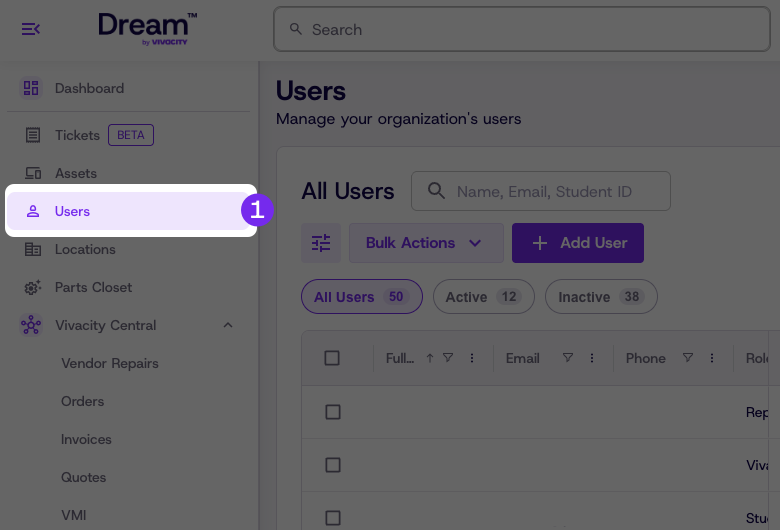
Navigate to the People tab of the navigation bar on the left
-
Find the Person you'd like to modify by searching or filtering the table
-
Click view next to the Person to move to the user details page

-
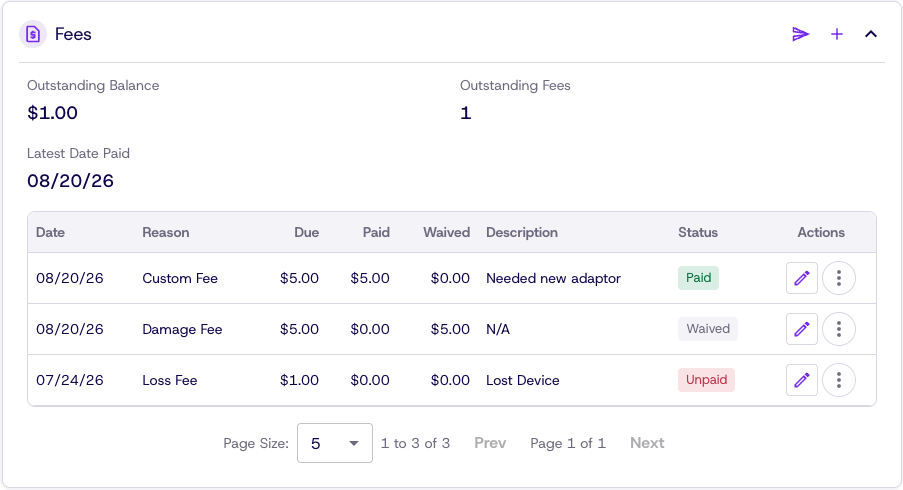
From the Person details page, a Fees card shows all unpaid, paid, and waived fees
-
Inside the Fees card, click the "+" icon in the top left to add a fee
-
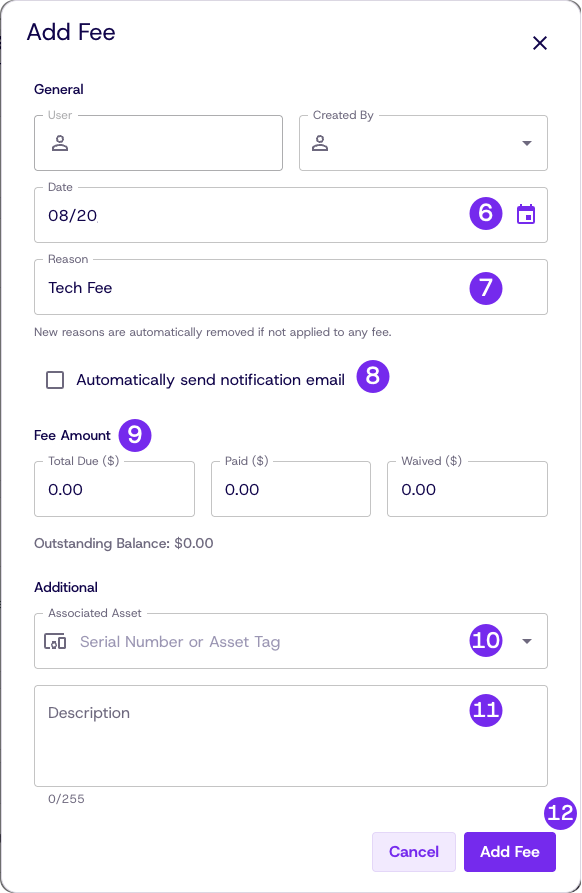
The date field is used to indicate when the fee was applied and is not a due date
-
Add a reason for the fee (Custom Fees can be added by selecting Custom Fee and tying in the reason box)
-
If you would like to notify the person immediately, click the checkbox next to "Automatically send notification email"
-
Under fee amount, add the total along with any pre-paid or waived amounts
-
If there is an asset associated with the fee it can be linked by serial number or asset tag
-
An optional description can be added explaining the fee
-
Click Add Fee to submit
Updated about 1 month ago