
How to Get Dream™ Support
Data secure and monitored support, only when you need it.
Live Chat
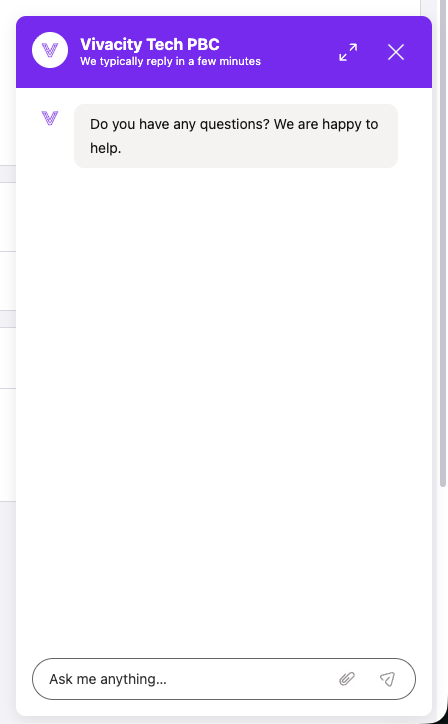
The first and quickest option for Dream™ support will be Live Chat. Live chat is accessible from anywhere in Dream™ via the Live Chat icon at the top of the screen. Live Chat will connect users to a member of our support team who can answer questions, provide documentation, and, when necessary, provide direct account support.
Steps
-
In the top right of Dream™, click the Live Chat icon

-
A chat window will open allowing you to write a message and attach images or screenshots.
Granting Access to your Dream™ account
Through the support process, your Dream™ support agent may deem it necessary to access your account directly. This would appear as a new admin within your Dream™ account and is mainly used for troubleshooting or when direct changes are needed. This level of direct access must be granted to your support agent and is on a temporary basis. All changes made and information viewed by support agents can be tracked and audited.
Why do I need to Grant Account Access? + SOC2SOC 2 is a data security and privacy standard that we at Vivacity adhere to. In addition to being an industry standard, it ensures that your data is Secure, Available, Accurate, Confidential, and Private. More information on SOC 2 compliance and how compliance protects your data can be found on their website here.
Steps
-
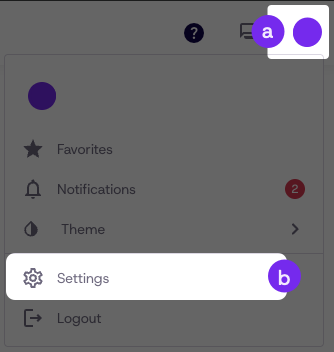
Navigate to User Settings
-
Click your User Icon
-
Click Settings
-
-
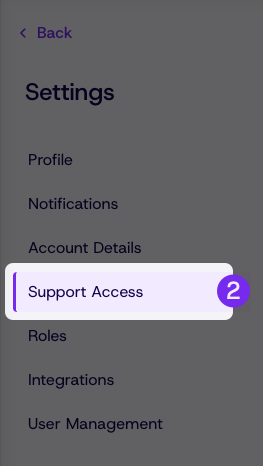
From Settings click the Support Access tab on the left
-
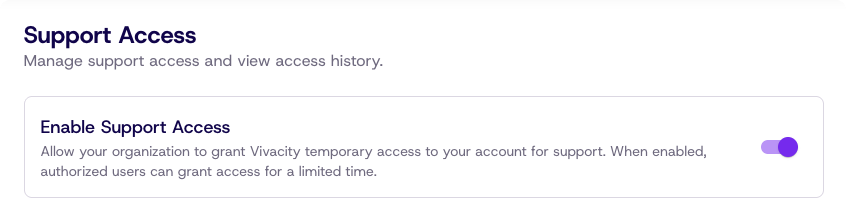
Click the slider next to Enable Support Access
-
Under Grant Support Access click Grant Access
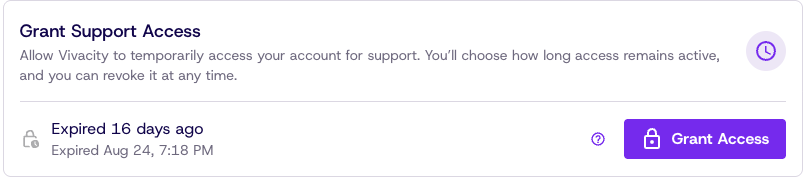
-
Select a duration or add a custom range for how long support access will be granted to the support agent. This access can be revoked at any time even before the support window expires
-
Type a reason for support access that you can reference later
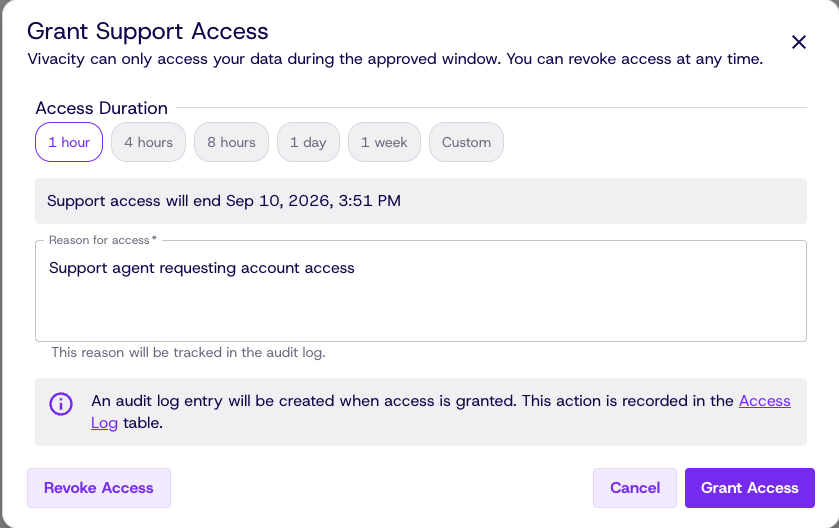
-
Click Grant Access
Delegate support access to your teams
Often the user requesting support access to an account will not be the accounts admin. By default, only a Super Admin can grant support access, however an admin may grant any user the ability to grant support access to their account by following these steps.
Steps from Edit People
-
Navigate to the People page
-
Click edit on the Person you would like to grant permissions to
-
Click the slider next to "Can Grant Support Access"

-
Save changes
Steps to bulk Delegate
- Navigate to the People page
- Filter the table to find people that you want to grant support access
- Select people using the checkboxes next to their name or click the top left box to select all
- Click Edit Permissions from the multiselect bar
- Click Support Access
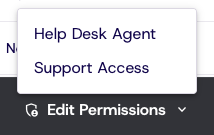
- Click Can Grant Access to delegate support access to all selected people
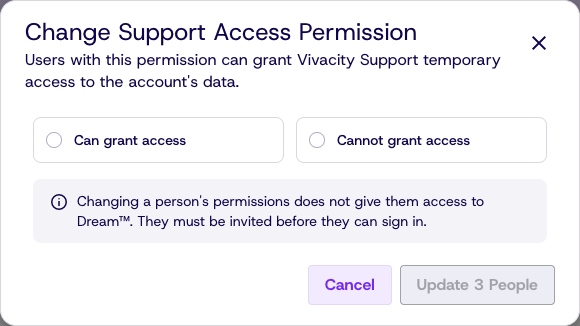
Access History and Support Activity
Below Grant Support Access are two tabs Access Grants and Support Activity. This is where you can audit the support history on your account.
Access Grants
Gives a list of all users who have granted support access to the account, why access was granted, and the duration of access.
Support Activity
Shows what support agent accessed which pages and what data was viewed
Updated 27 days ago