
Getting Started
Welcome to Dream™ by Vivacity Tech. This guide walks you through creating your account and signing in for the first time.
Self Signup
After completing self-signup you'll receive initial guest access to Dream™. Enabling the Google integration (requires GAC Super Admin) automatically upgrades your account to Dream™ Super Admin.
Steps
-
Enter your email and password
Navigate to the Dream™ signup page, enter your email address and desired password -
Click Sign Up
For new accounts, click Sign Up below the sign In button -
Click Accept
Dream™ needs permission to view your account data for verification. For more information on what data Dream™ has access to, see our data usage policy and disclosures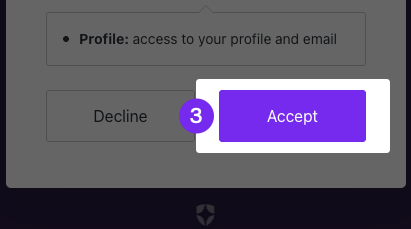
-
Confirmation
After your sign in has been confirmed by our team, you will receive a confirmation email and can proceed to log in -
Click Accept
When you log in to Dream™ for the first time, you will be prompted to accept our terms and conditions
Questions during signup? Reach out to [email protected].
New User Login
If your email domain differs from your school's Google Management domain (e.g. apps.school.org vs school.org), contact [email protected] before proceeding.
Steps
- Sign in with Google or email/password
Click Sign in with Google to use your school's Google account and SSO, or enter your credentials manually. - Accept the authorization prompt
Click Accept on the Google authorization screen. - Verify your account
Check your inbox for a confirmation email and click Verify Your Account. Your account will be approved within one business day — requests are typically handled same day.
Updated 3 months ago