
How to Create a Ticket for Vivacity Repair
Use this process when sending a device to Vivacity for repair.
Create the Helpdesk Ticket
-
From wherever you are in Dream click Create Ticket at the top of the page.
-
Populate all relevant Helpdesk ticket information
- Serial Number or Asset Tag is required for repair
-
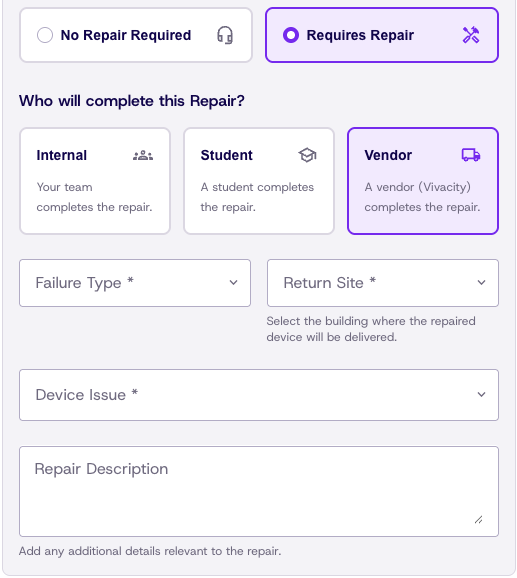
Click Requires Repair
-
Select Vendor
-
Failure Type:
- Accidental: Something is physically broken
- Intentional: Something was broken intentionally
- Mechanical: Something is not working as it should, but there is no visible damage
-
Return Site: Where will the device be returned to?
-
Device Issue: What is the part that has failed or broke?
-
Repair Description: This is the note that our team will use to help diagnose the reported issue
-
click Create Ticket
Create a Repair Box and Shipping Label
-
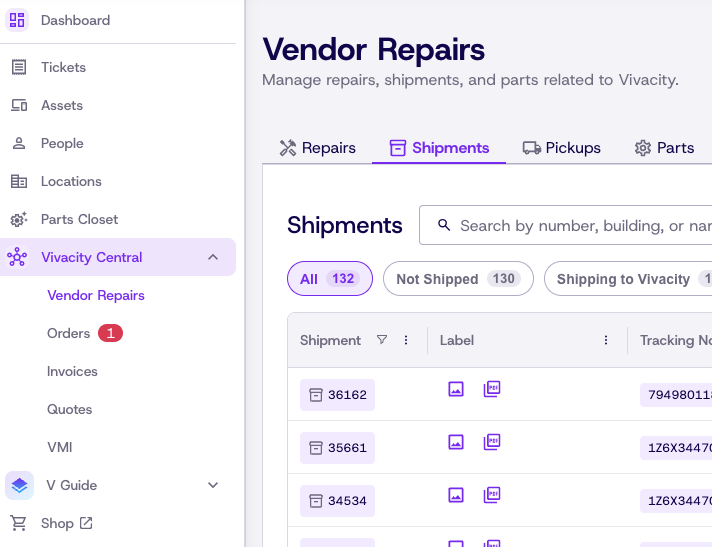
Click Vivacity Central
-
Click Vendor Repairs
-
Click Shipments
-
Click the Create Shipment button

-
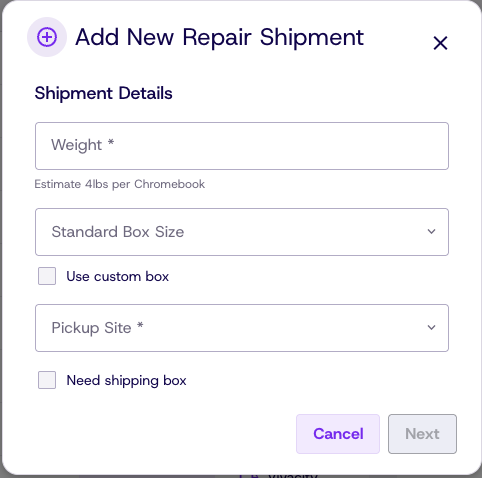
Enter box weight if unknown, estimate (a Chromebook is roughly 4 lbs)
-
Select the size of box that you will use
-
Check Use Custom Box if using your own box with custom dimensions
-
Check Need Shipping Box if you need Vivacity to provide a box
-
Click Next
-
Select repairs from the Add Repair dropdown
-
If you need to schedule a pickup for this box, check the box next to Schedule a FedEx pickup after creating this shipment
-
Click Create Shipment
-
Click the PDF or Image button on the generated box entry to download your shipping label
Updated 22 days ago