
How to Add a Line Item After a Ticket Has Been Created
Steps
Open the repair ticket and click Add New Line Item
-
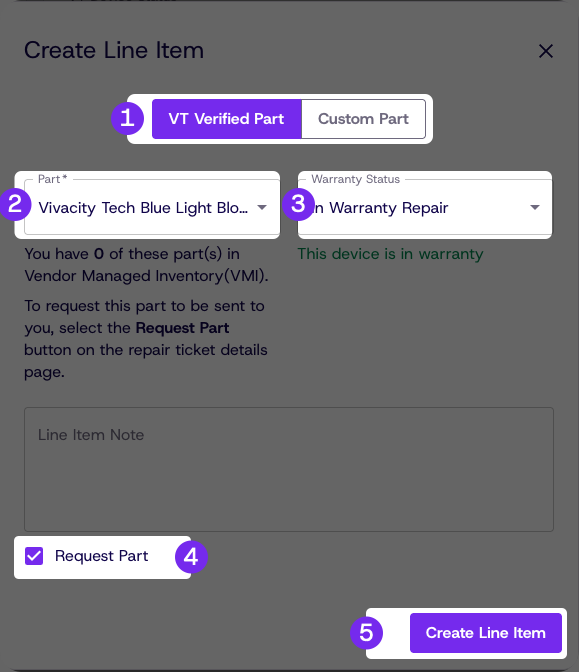
Select a VT Verified Part or Custom Part
-
Select Out-of-Warranty or In-Warranty Repair based on the failure type and coverage
-
Check Request Part in Step 4 if requesting a warranty replacement or quote
-
Click Create Line Item
-
Use the action button on individual line items or click Request All to notify Vivacity
Vivacity will not be notified of the part request unless the part is explicitly requested. The button will change to Requested and gray out once submitted.
For warranty terms and conditions, refer to the Warranty Information tab in the Resources section of Dream™ or contact your account manager.
Updated about 1 month ago
Did this page help you?